This article explains how to check who is using your Telegram links, have unique joining links for each learner, and take action if unauthorized users access your community.
Note: This article assumes you have already enrolled learners into your Telegram community (either through bulk enrollment or individual purchases). If you haven't enrolled learners yet, please follow our guide: How to Bulk Enroll Users on Telegram
Understanding Unique Telegram Links
When a learner enrolls in your Telegram community (either by purchasing or through bulk enrollment), they receive unique Telegram joining links. Each learner gets a separate unique link for each Telegram community they have access to.
These links are:
Personal: Each link is unique to one learner
Trackable: You can see which Telegram account used the link
Regenerable: You can create new links if needed
One-time use: Once used, the link is associated with that Telegram account
How to Check Who is Using Your Telegram Links
Step 1: Navigate to Customers Section
Go to your Telegram community product page and click on the "Customers" tab at the top.
You'll see a list of all enrolled learners with their details.
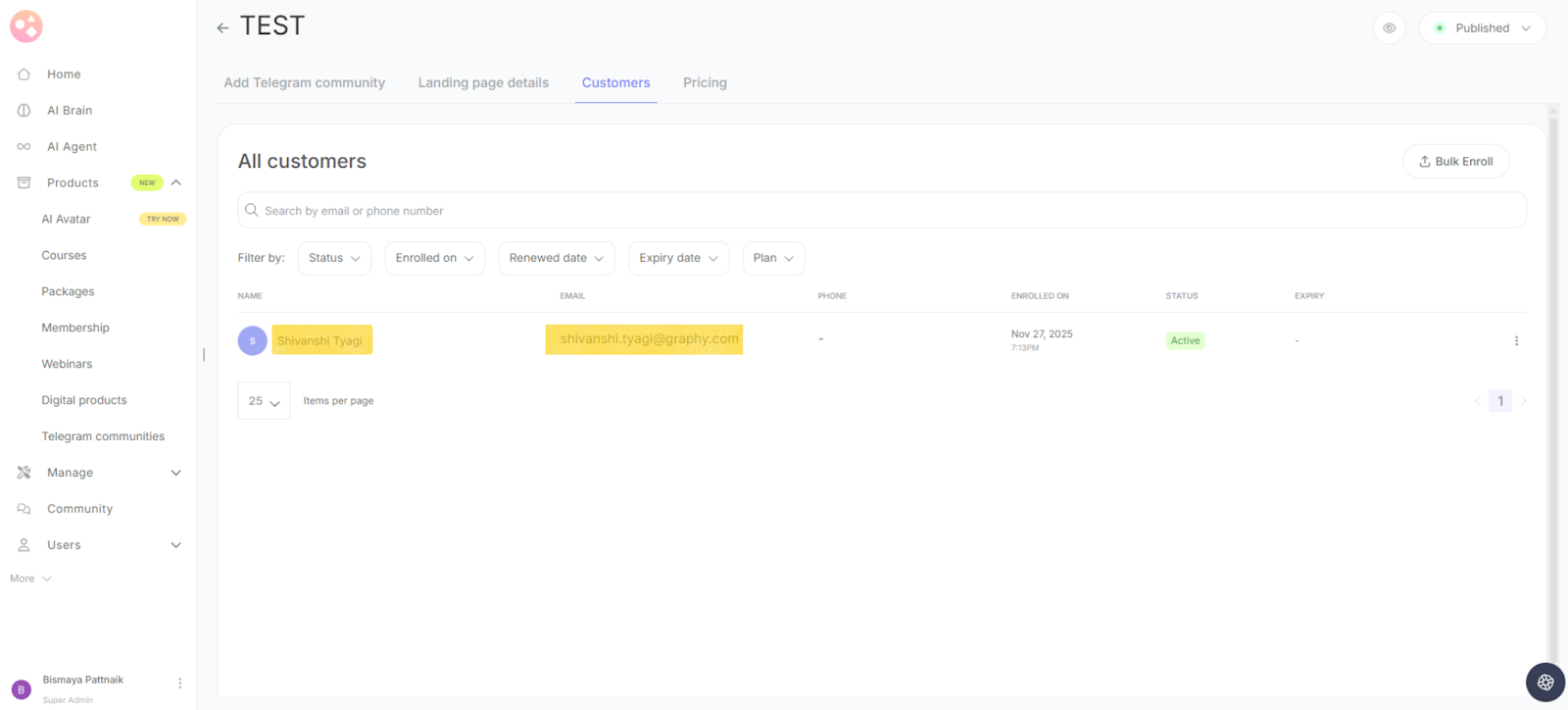
Step 2: View Learner's Details
From the "All customers" page, locate the learner you want to check.
Click on the learner's row or click the menu icon (three dots) next to their name.
Select "View learner" or "Plan & usage" to see their details.
Step 3: Check Telegram Groups and Link Usage
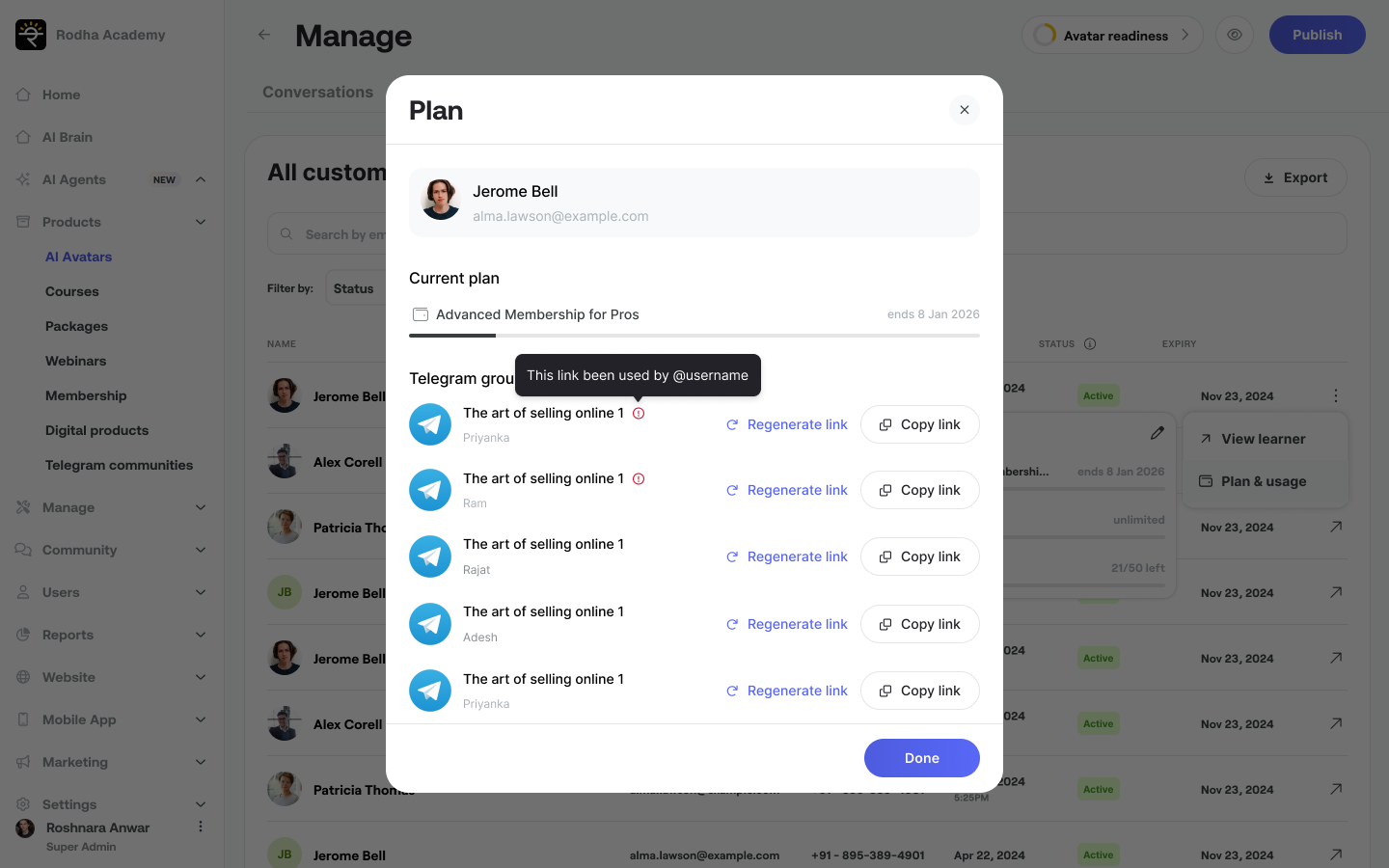
A "Plan" dialog will appear showing:
Current plan:
The learner's active subscription or plan name
Plan expiry date (e.g., "ends 8 Jan 2026")
Telegram groups: Below the current plan, you'll see a list of all Telegram communities the learner has access to.
Each Telegram group shows:
Community name: The name of your Telegram community (e.g., "The art of selling online 1")
Creator name: Shown below the community name (e.g., "Priyanka", "Ram", "Rajat")
Link status: "This link been used by @username" (if the link has been used)
Action buttons:
"Regenerate link" - Creates a new unique link
"Copy link" - Copies the current unique link
Understanding Link Usage Status
When viewing a learner's Telegram groups, you can see if their link has been used:
"This link been used by @username"
Shows the Telegram username that clicked and used the link
Confirms the learner has successfully joined the Telegram group
Helps you verify if the correct person accessed the community
Managing Telegram Links
Regenerate Link
Click the "Regenerate link" button next to any Telegram group to create a new unique link.
When to regenerate a link:
You notice an unauthorized Telegram username used the link
A learner reports they shared their link by mistake
A link has been compromised or exposed
What happens when you regenerate:
The old link becomes invalid immediately
A new unique link is created for that learner
The previous Telegram user (if any) will need the new link to maintain access
You need to send the new link to the legitimate learner
Copy Link
Click the "Copy link" button to copy the learner's unique Telegram joining link to your clipboard.
When to use copy link:
Send the link directly to the learner via email or message
Share it through alternative communication channels (WhatsApp, SMS)
Provide support when a learner can't find their original link
Keep a record of the link for support purposes
What If Someone Else Uses a Learner's Telegram Link?
If you discover that an unauthorized person used a learner's unique link, follow these steps:
Step 1: Identify The Issue
Check the Telegram username shown in "This link has been used by @username".
Verify if it matches the learner's expected Telegram account.
Signs of unauthorized usage:
Username doesn't match the learner's name
Learner reports they can't access the group
You see suspicious or unknown usernames
Step 2: Regenerate Link
Click "Regenerate link" next to the affected Telegram group.
This will:
Invalidate the old link immediately
Create a new unique link for the legitimate learner
Prevent further unauthorized access through the old link
Step 3: Send New Link to Legitimate Learner
After regenerating:
Click "Copy link" to copy the new unique link
Contact the legitimate learner via email or phone
Send them the new unique Telegram joining link
Step 4: Remove Unauthorized User from Telegram
Go to your Telegram channel or group:
Open your Telegram app
Navigate to your community channel/group
Access the members list (tap on group name → Members)
Find the unauthorized user by their username
Tap on their profile
Select "Remove from group/channel"
Confirm the removal
The unauthorized user will no longer have access to your Telegram community.
Was this article helpful?
Keep your Telegram community secure by monitoring link usage regularly!
Was this article helpful?
That’s Great!
Thank you for your feedback
Sorry! We couldn't be helpful
Thank you for your feedback
Feedback sent
We appreciate your effort and will try to fix the article