This article explains how to customize the header and footer section that appear across all pages on your Graphy website.
Accessing Navigation Settings
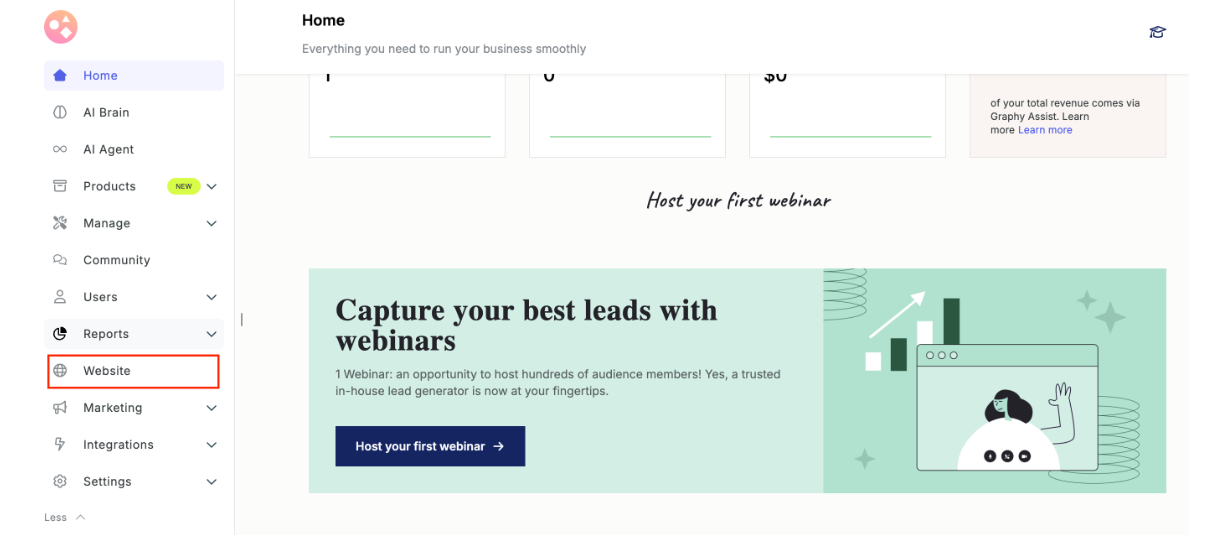
Step 1: From the Graphy dashboard click on Website from the left panel.
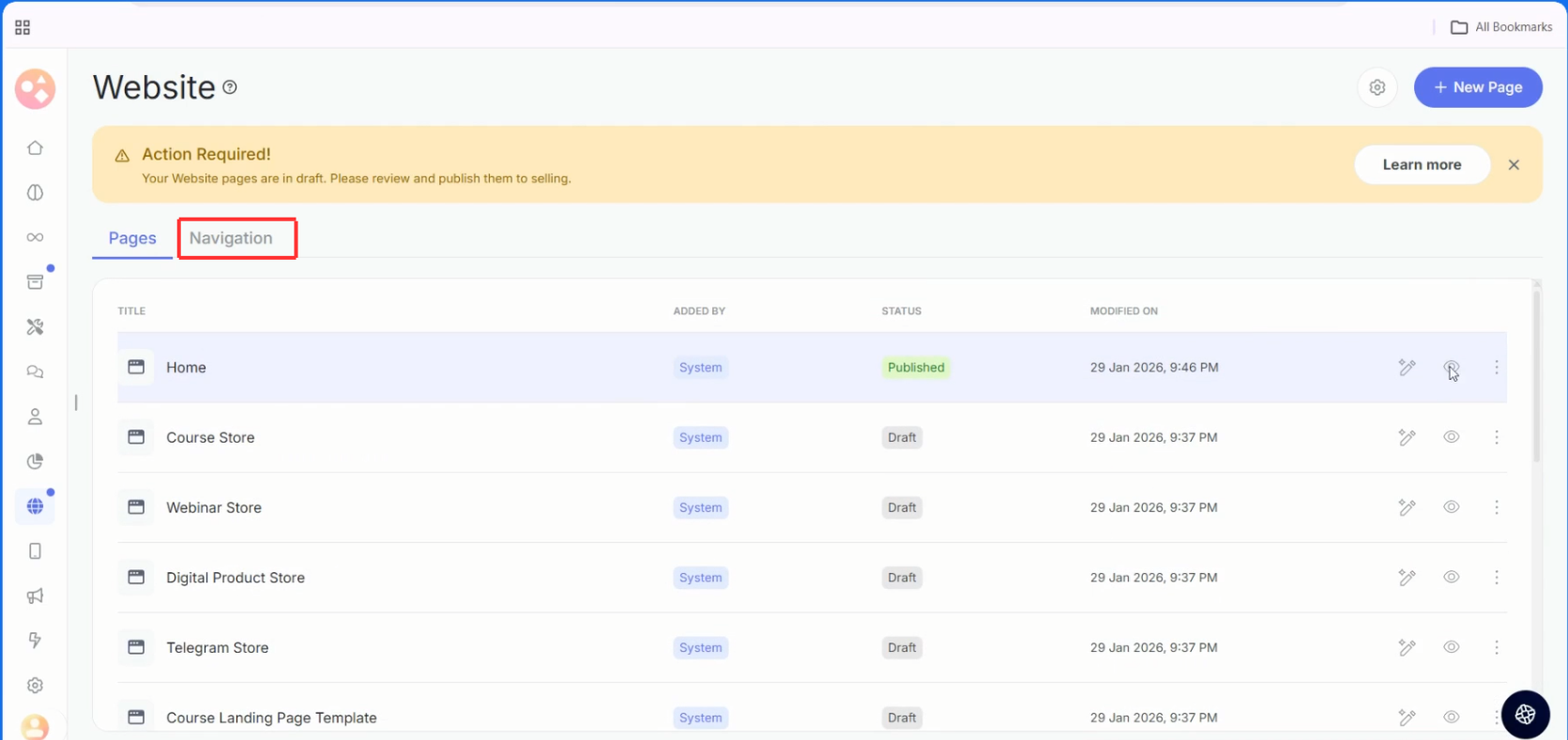
Step 2: For editing the header and footer, from the Website pages section, find Navigation on the right of Pages and click on it.
Editing the Header Menu
The header menu appears across all pages on your website. You can customize it to match your brand and navigation needs.
Step 3: In the Navigation section, find the Header menu and click on Edit.
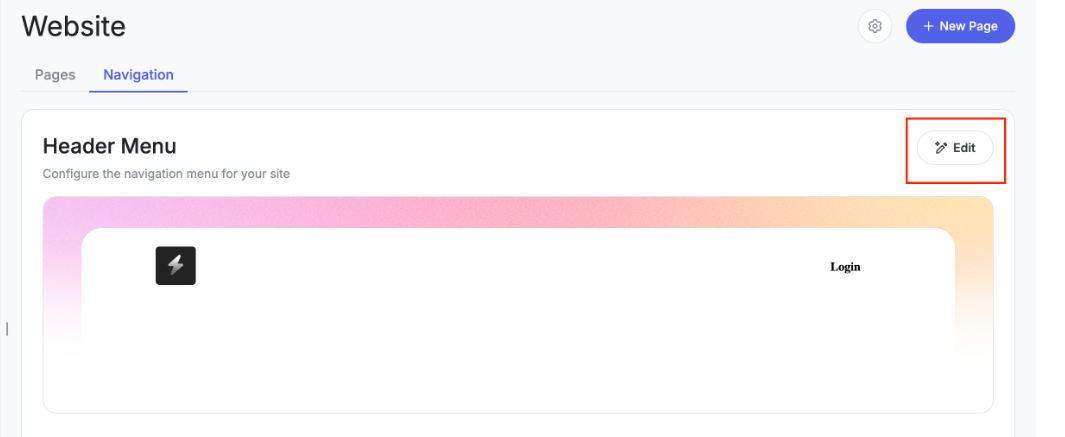
You'll be taken to the editor where you can customize the header section.
From here, you can:
- Add new menu items.
- Remove existing menu items.
- Rearrange menu items by dragging them.
- Edit menu item labels and links.
Note: You won't be able to remove the login option, but you can edit everything else.
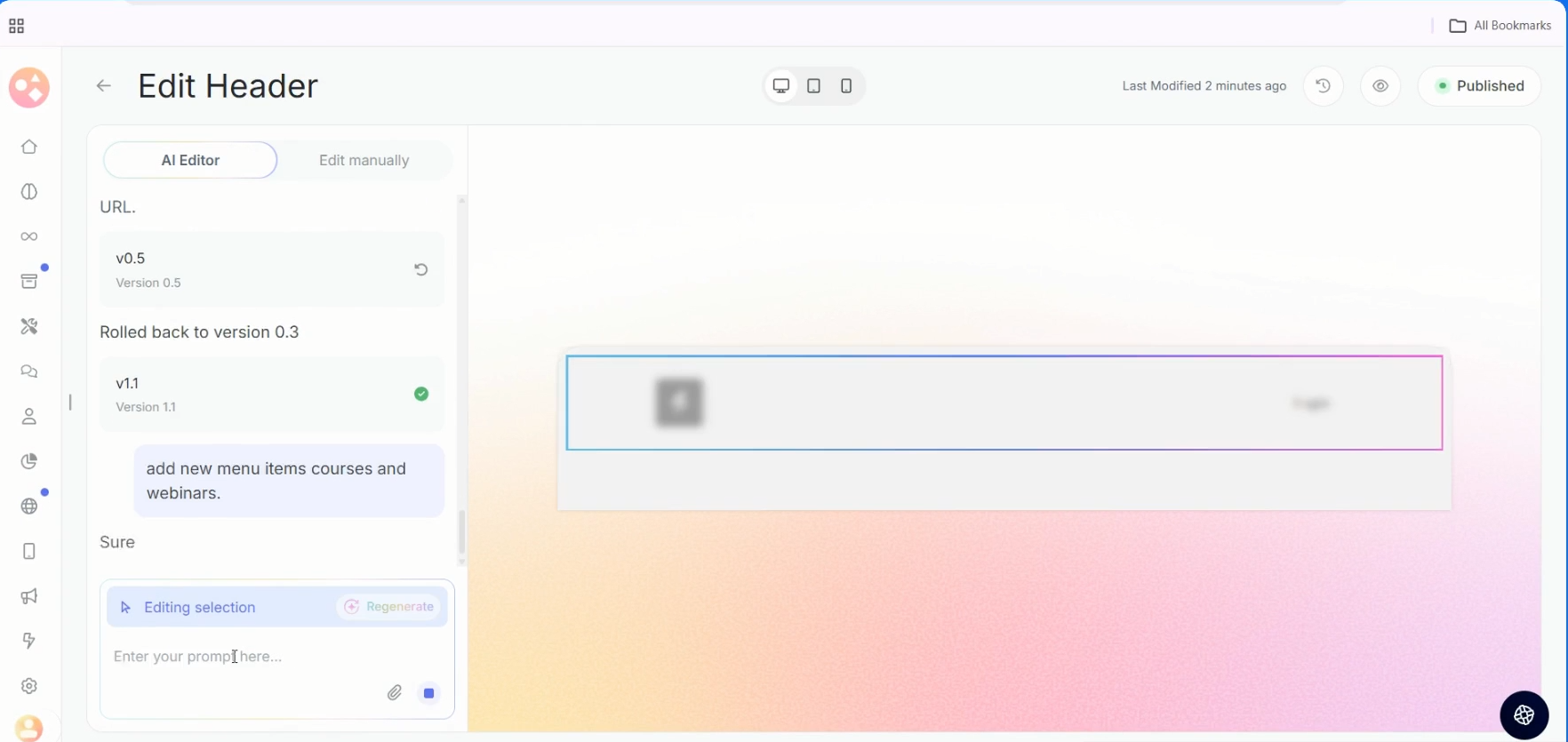
Step 4: Double click to select the header section and then give a prompt.
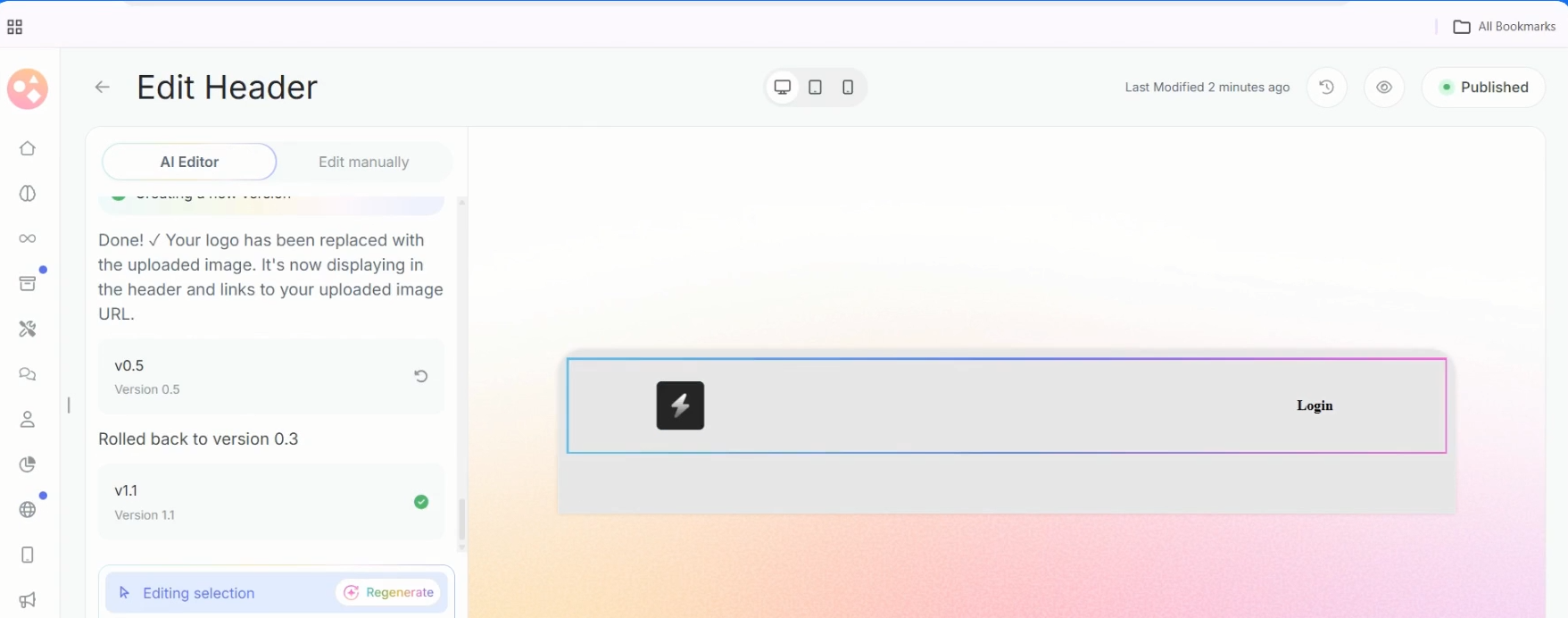
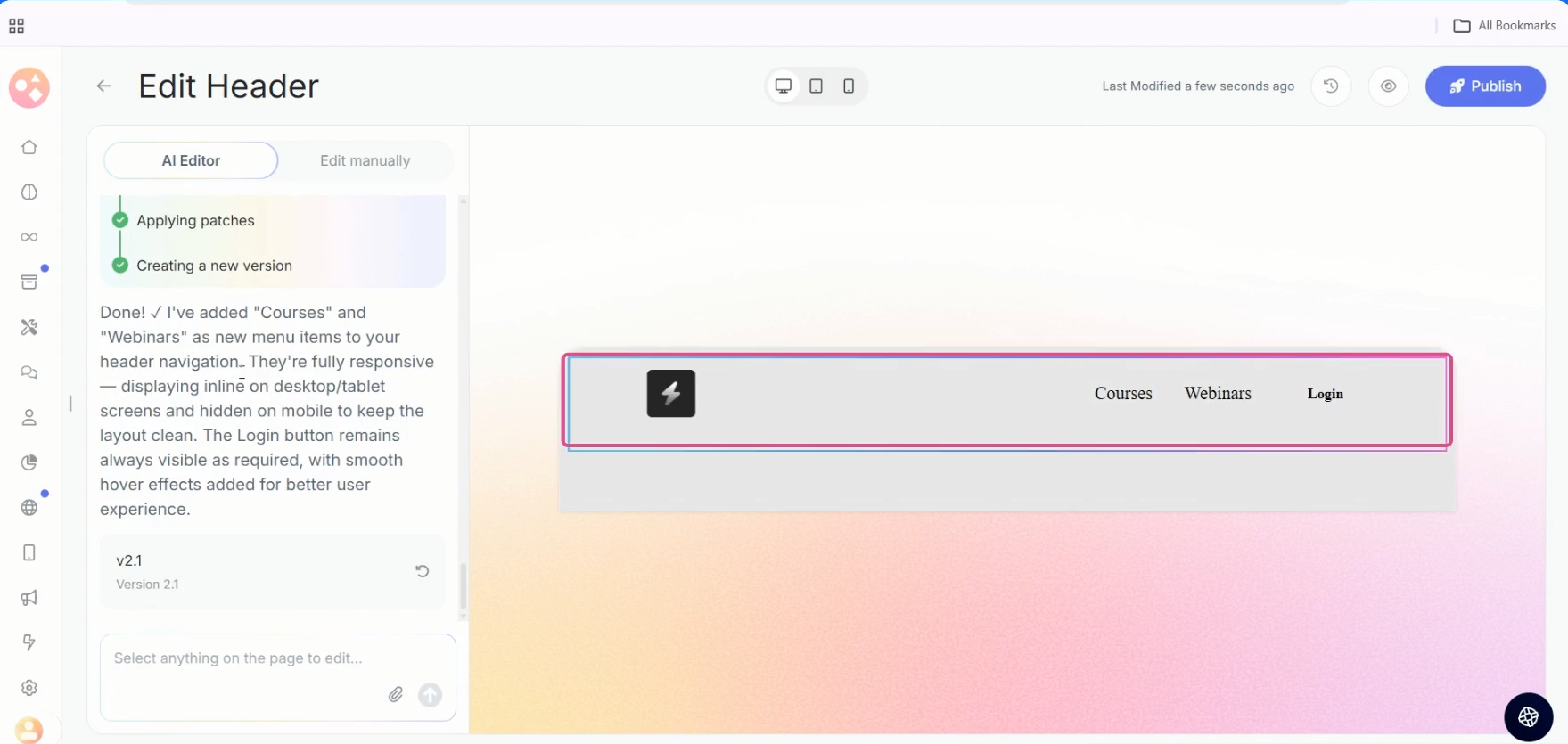
Step 5 : For example, you can give a prompt to add new menu items to the header section.
Two new menu items are added in the header section.
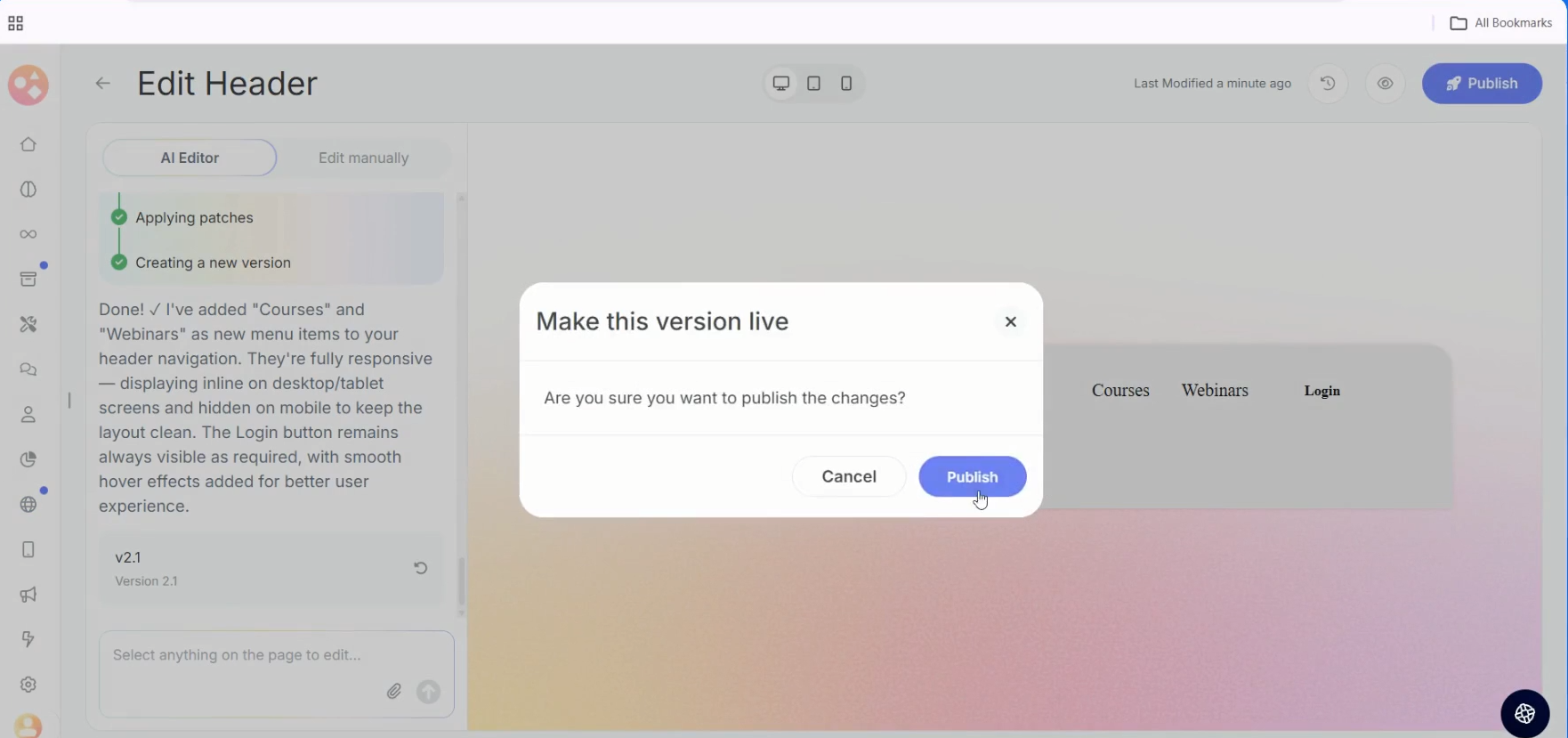
Step 6: Click on Publish to publish the changes.
Editing the Footer
The footer appears at the bottom of all your website pages.
Step 7: In the Navigation section, find the Footer option and click on Edit.
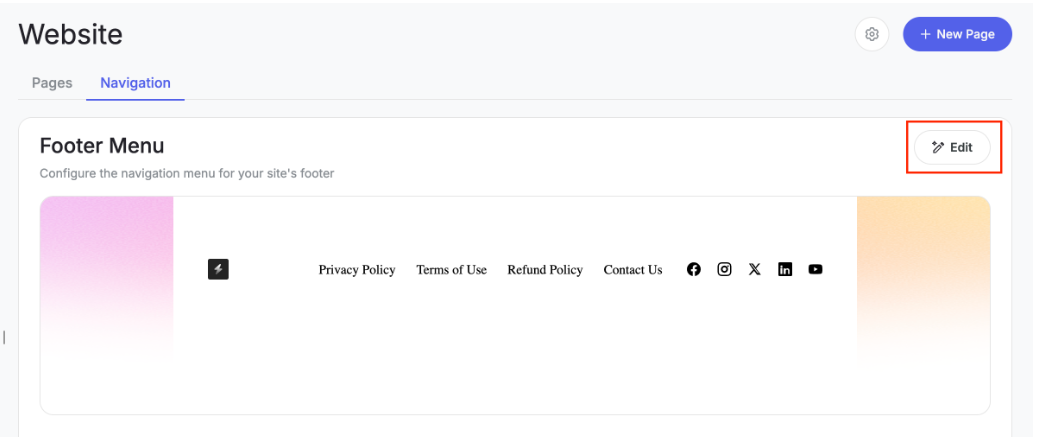
In the editor, select any part of the footer and give a prompt to update it using AI.
You can customize:
- Footer layout and design
- Contact information
- Social media links
- Copyright text
- Additional links and sections
Step 8 : Double click to select the footer section and then give a prompt.
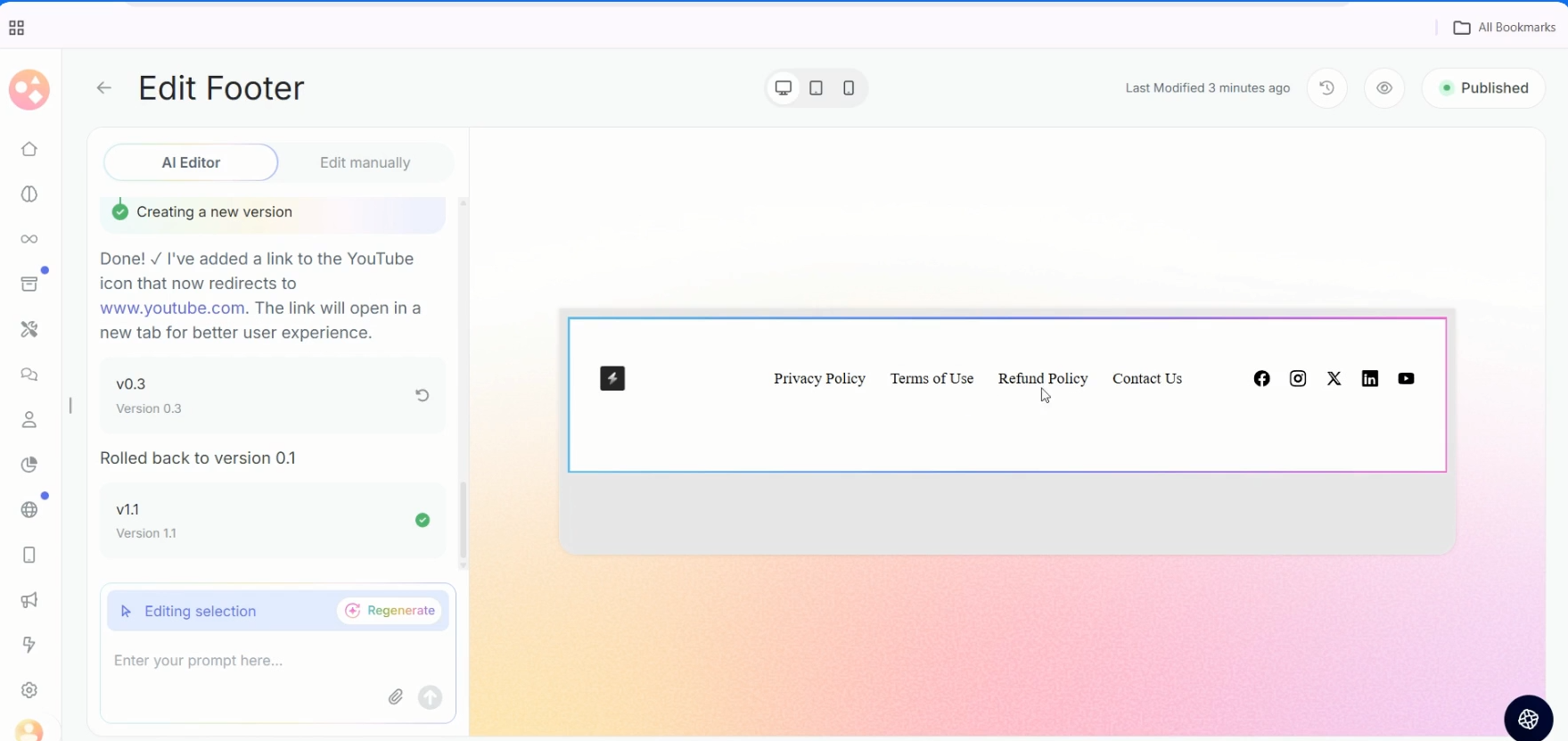
Step 9 : For example, you can give a prompt to add your youtube link to the youtube social icon in the footer.
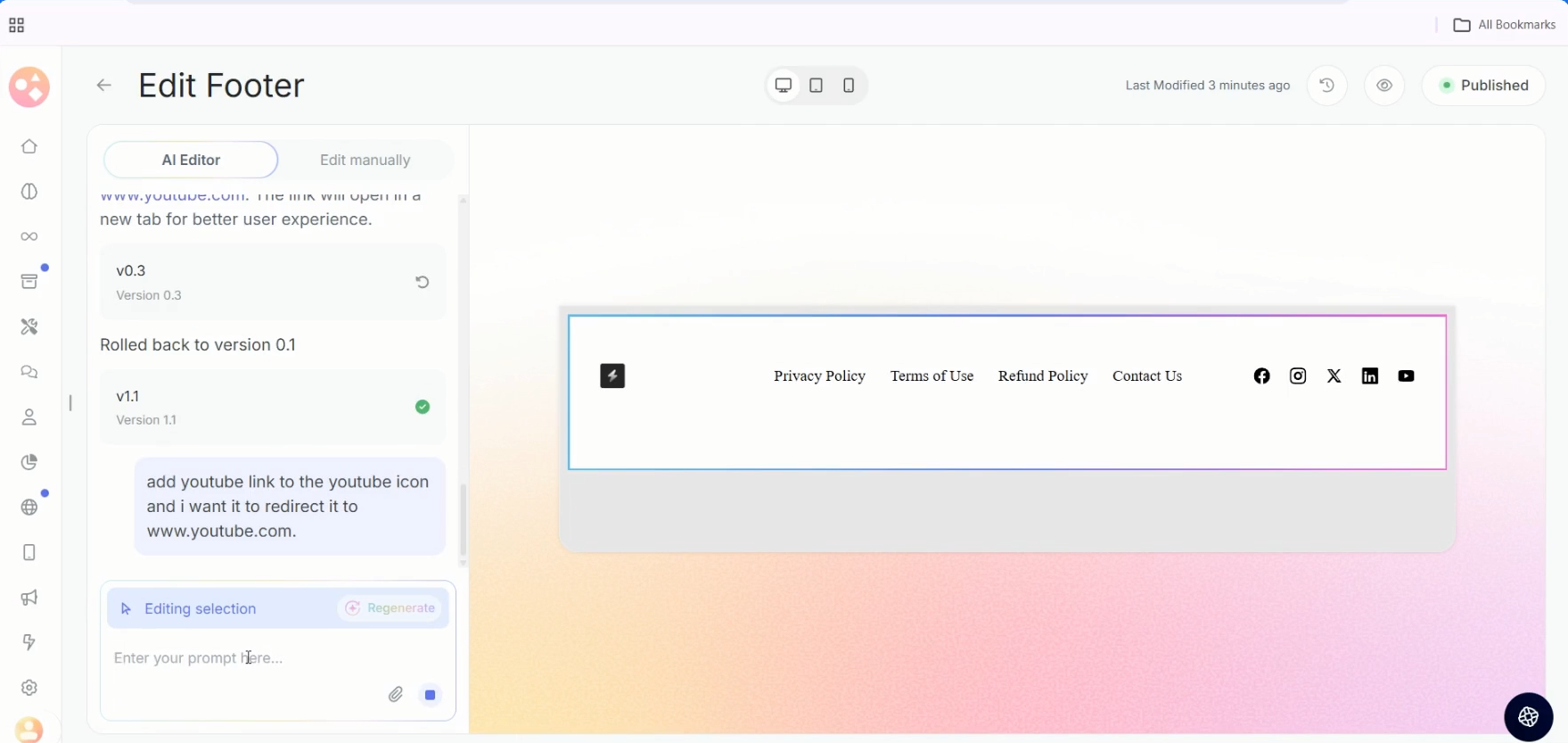
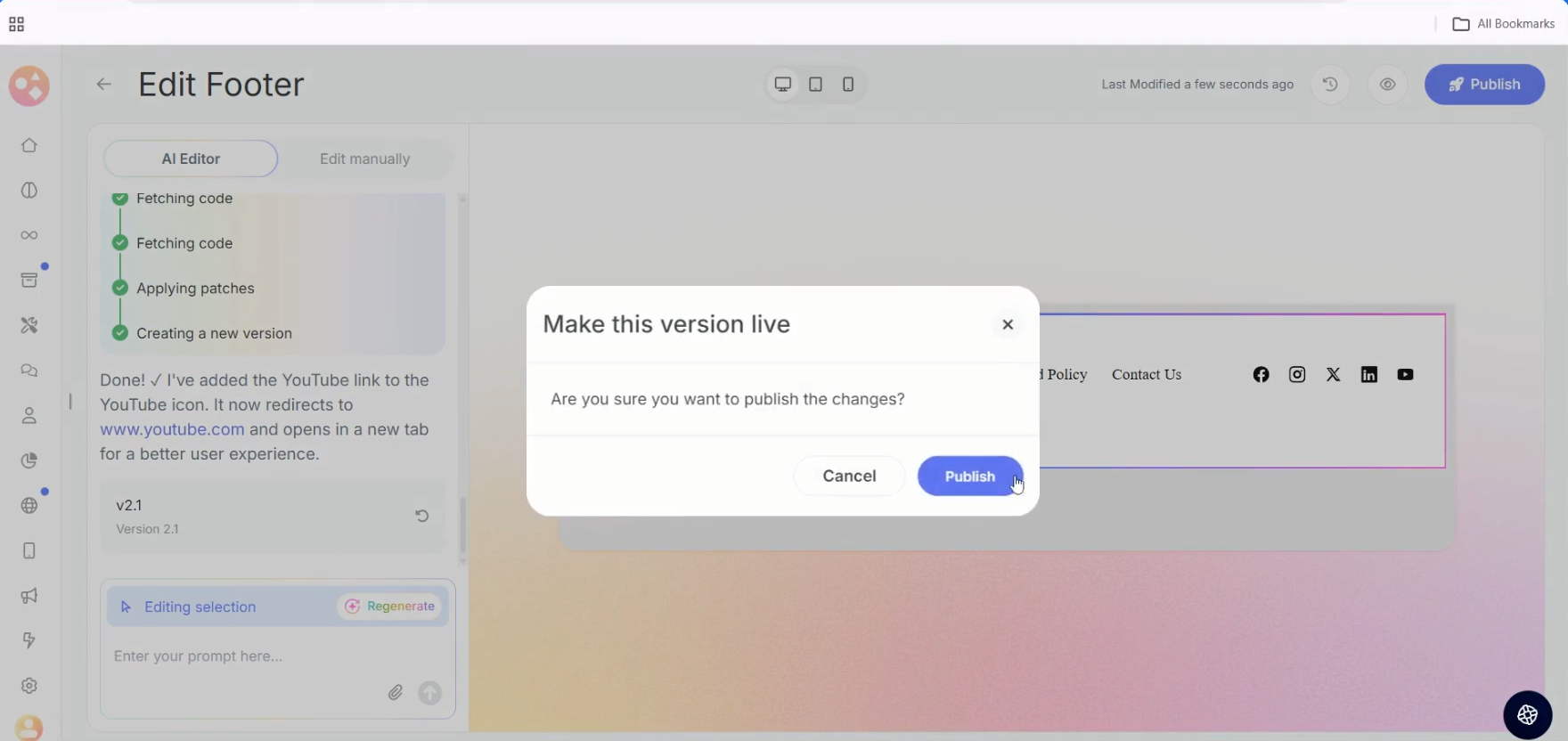
Step 10: Click on Publish to publish the changes.
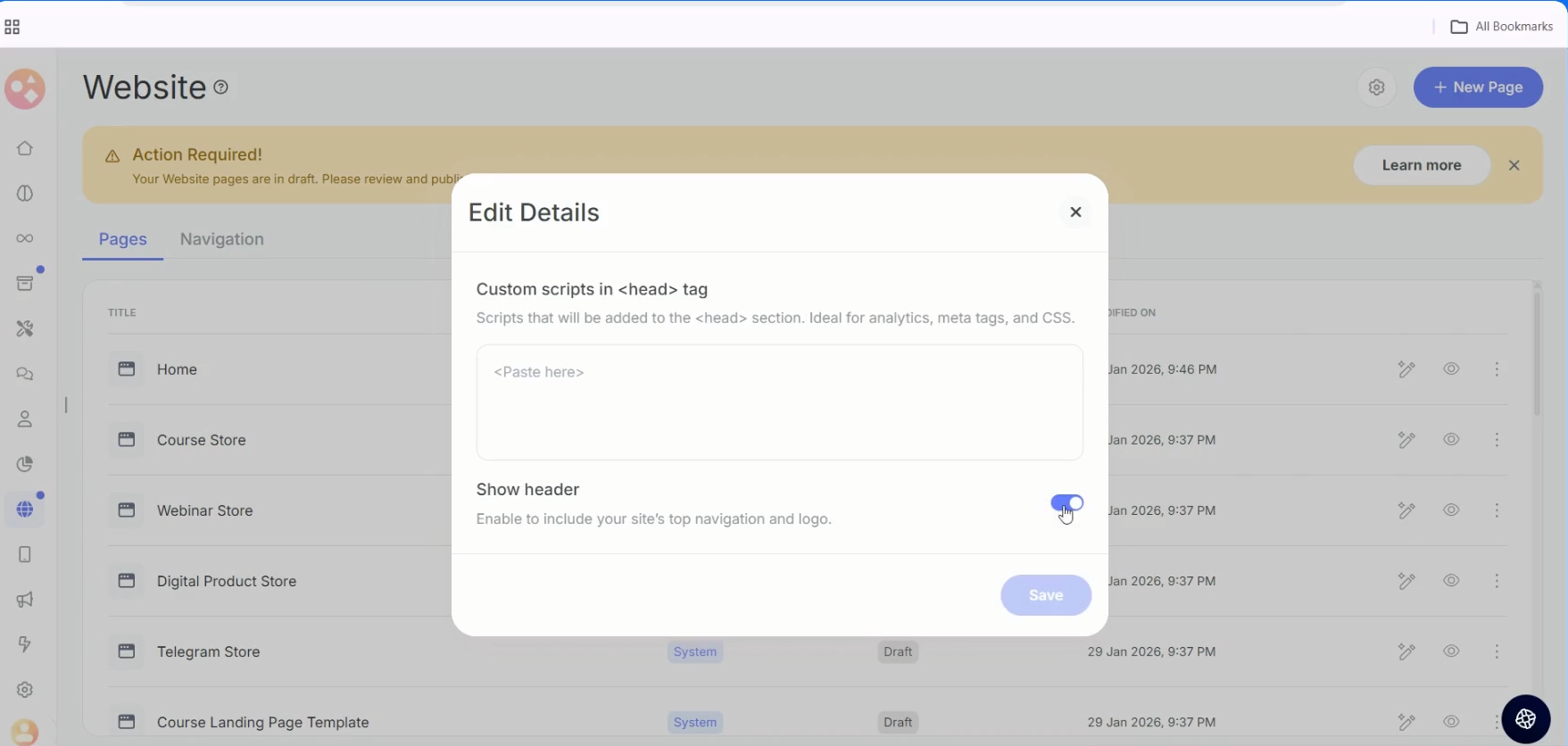
Step 11: From the three-dot menu on every page you can go to Edit Details.
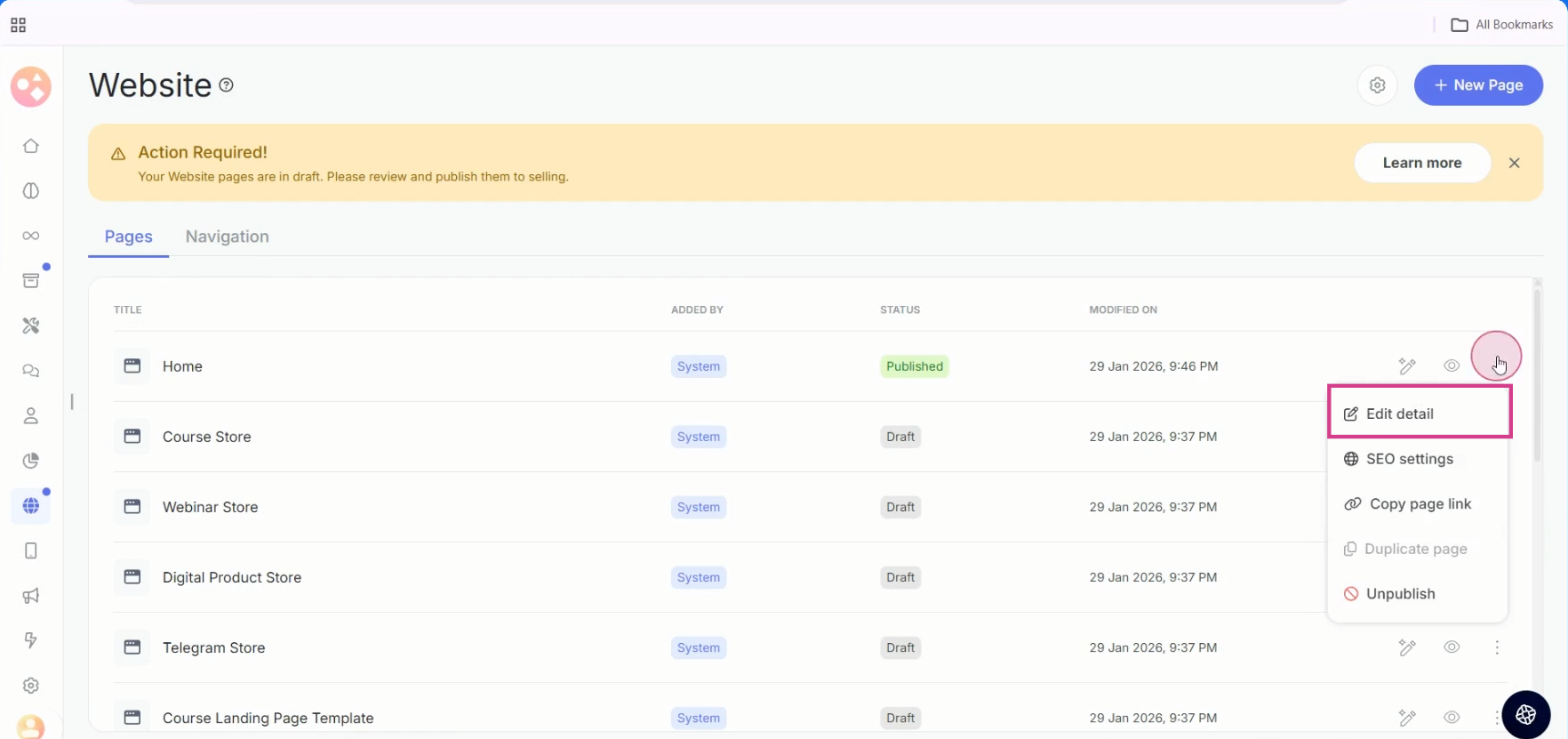
Step 12: You can disable the header if you do not want the header on the web page and also add custom head scripts.
Graphy Branding
You'll also see Graphy branding on your website footer.
If you want to remove the Graphy branding, reach out to our support team, and they will help you with that.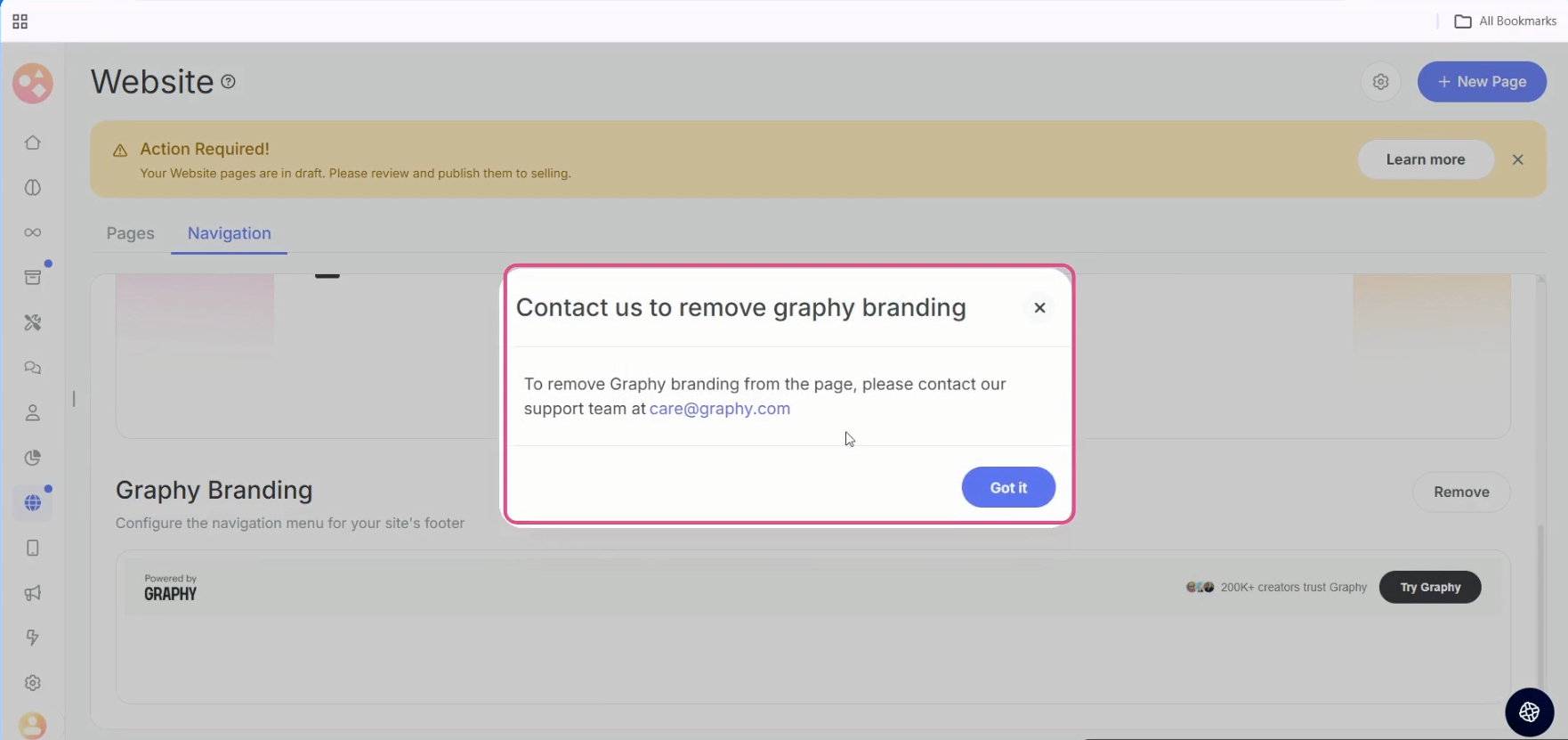
Was this article helpful?
That’s Great!
Thank you for your feedback
Sorry! We couldn't be helpful
Thank you for your feedback
Feedback sent
We appreciate your effort and will try to fix the article