This article is a step-by-step guide on using the Style Guide tab to customize the overall look and feel of your website pages on Graphy.
The Style Guide tab lets you transform your entire page's appearance by regenerating color schemes, experimenting with different fonts, and resetting to default styles. Make global design changes that affect your entire page aesthetic, try unlimited design variations, and maintain visual consistency across your website. This tab is perfect for quickly changing your page's mood and branding without touching individual elements.
Customizing Your Design with Style Guide
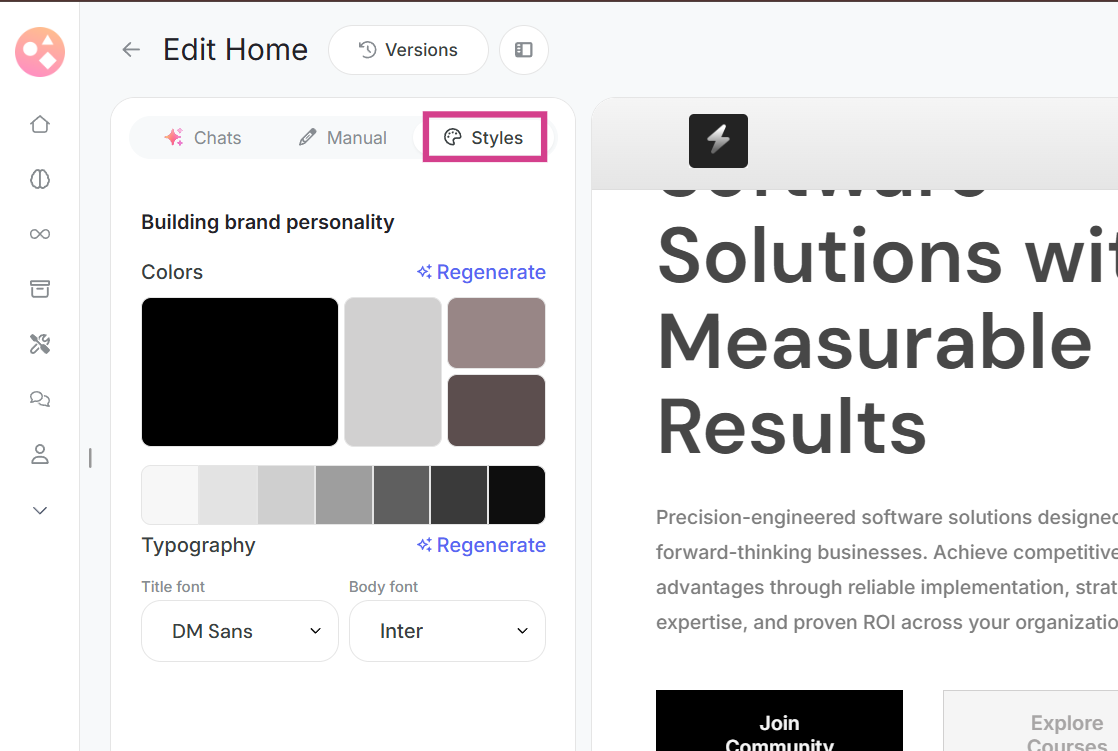
Step 1: In the Style Guide tab, you can customize the overall look and feel of your entire page.
The Style Guide tab provides global design controls that affect the overall appearance of your page.
Regenerating Color Schemes
Step 2: You can regenerate different color schemes to give your page a fresh look.
Simply click on the regenerate option and let the system generate new color combinations that match your brand and content.

Trying Different Text Families
Step 3: Experiment with different text families (fonts) to find the typography that best suits your page.
Click on the regenerate option and preview how different font families look on your page before applying them.

Resetting to Default Styles
Step 4: If you want to start over, you can reset everything back to the default styles with a single click.

This is useful if you've made multiple changes and want to return to the original design.
Saving Your Style Customizations
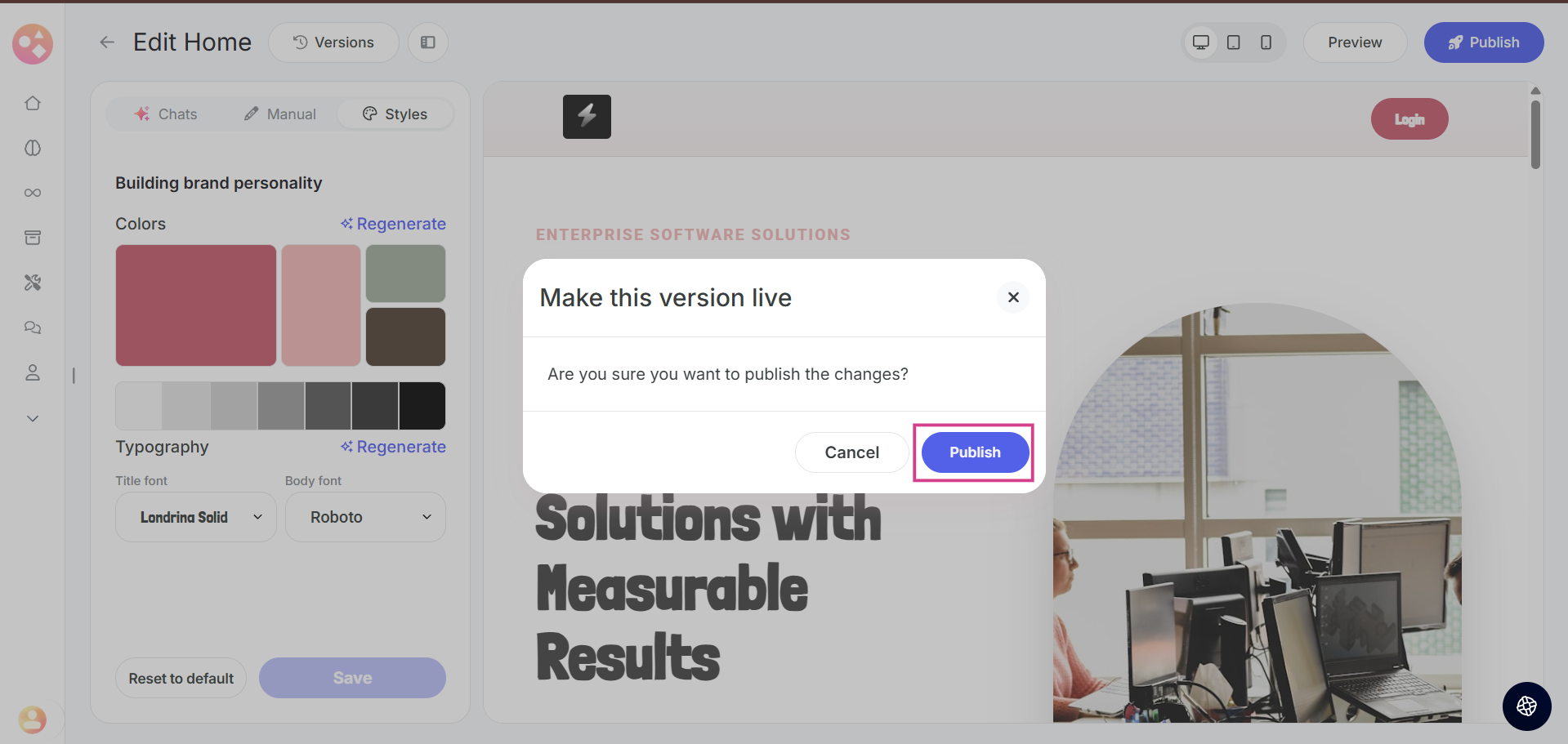
Step 5: Once you're satisfied with your style customizations, click on Save to make the changes live.

Step 6: You then need to publish the changes to make them live.
Related Articles:-
- How to Edit Web Pages using the AI Editor On Graphy?
- How to Manage Version History and Roll Back Changes on Graphy?
- How to Manually Edit your Website Pages on Graphy?
Was this article helpful?
That’s Great!
Thank you for your feedback
Sorry! We couldn't be helpful
Thank you for your feedback
Feedback sent
We appreciate your effort and will try to fix the article