This guide explores the advanced settings of a quiz. If unfamiliar with creating a quiz, refer to the article on adding a quiz to a course.

Navigate to Advanced Settings. Here, find a variety of options.
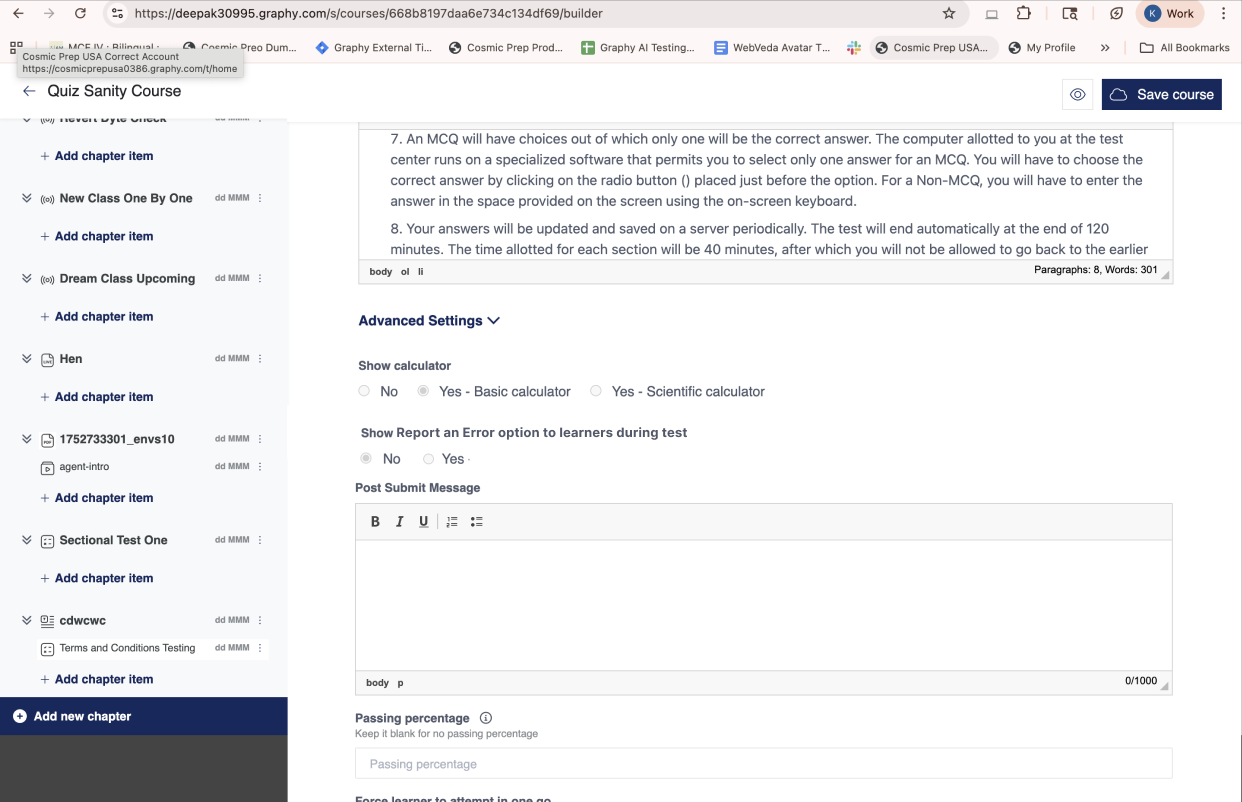
1. Show Calculator: You can give learners the liberty to access a calculator while attempting the Quiz.
The default option is selected as "No". To allow learners to use a calculator, select the type of calculator you want to use.
2. Report an Issue- When you turn this on, learners can report an issue during the quiz taking time.
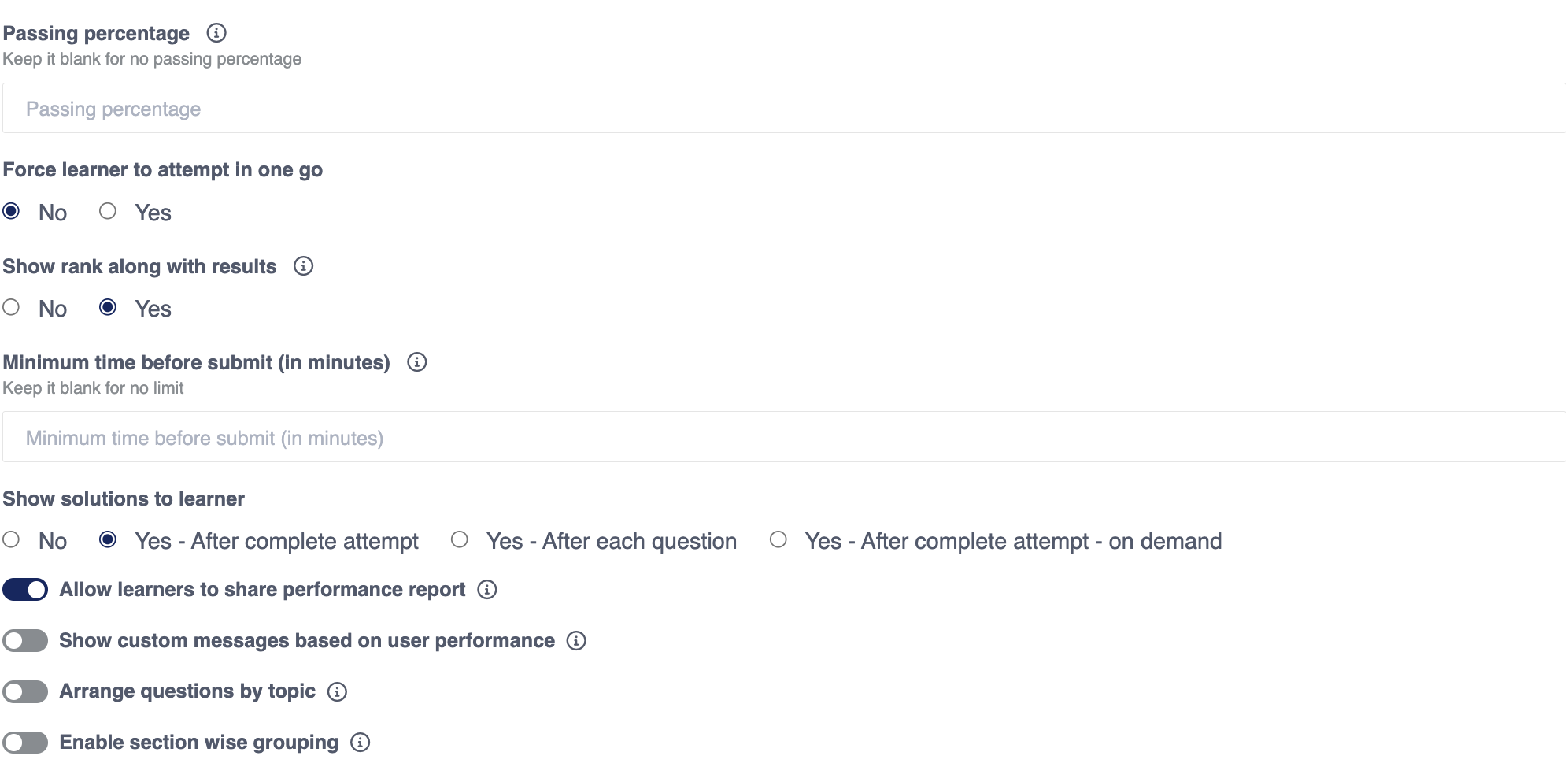
3. Passing Percentage: You can enable learners to compulsorily score a minimum % on Quiz before it's marked "complete" on their dashboard. If learners fail to score that marks
Please note that if you have enabled the minimum passing % in the "Certificate" section, then learners won't be awarded the certificate until they secure that %
4. Force Learner to attempt in one go: If you want the learner to attempt the Quiz in one go, click "yes".
5. Show Rank: To present a learner's rank after they have attempted the Quiz, click on "Yes".
6. Minimum Time Before Submit (in min): You can allow a minimum time taken by the learners while attempting a Quiz. They cannot get an out, from the quiz, before that.
7. Allow learners to share performance report : This option enables learners to share their percentage, total score, topic wise report with others.
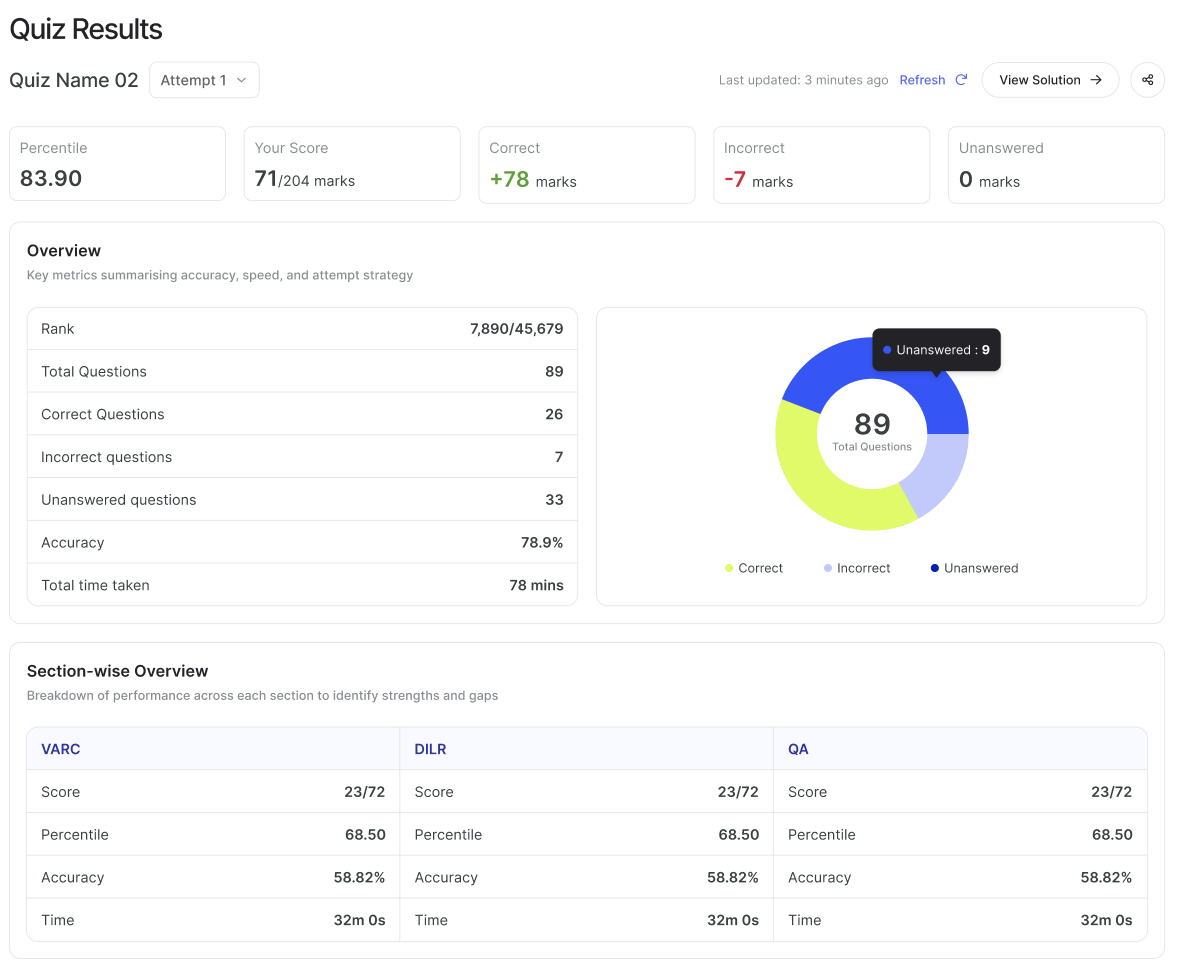
Show custom message based on user performance: You can use this option to set customized remarks for learners based on their scores.
Example: If you want to give the students securing 90 and above a remark "Well done. Keep up the good work.", you can write it in the message box. In the "User percentage Between" you will write "90" in the first box & "100" in the second box.

If you want to elaborate further on different user groups, you need to click on (+) sign to add sections.
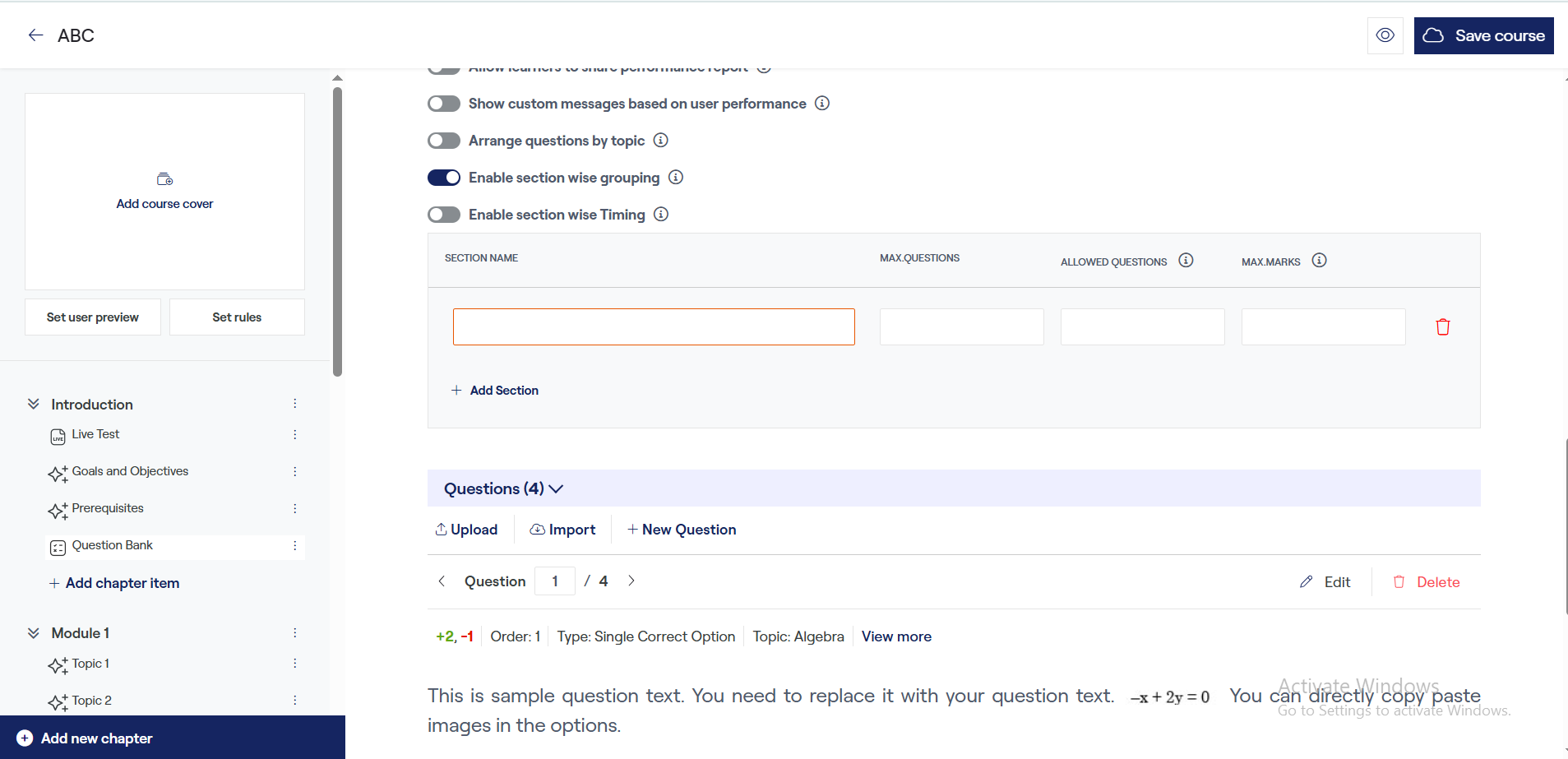
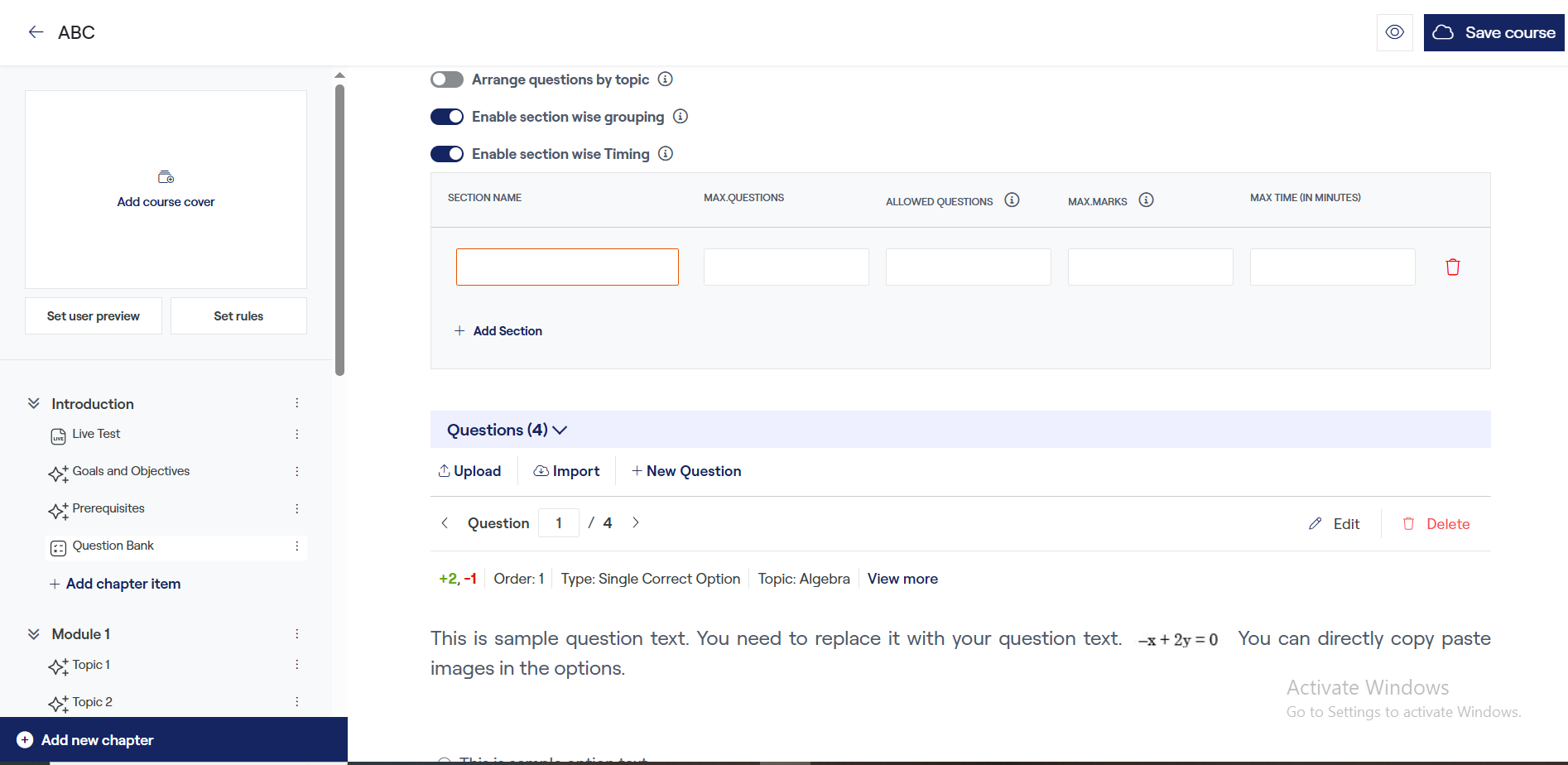
Enable section-wise timing: Enable section-wise timing by turning the toggle on. Set the maximum allowed time for each section. You can also add minimum time learners are needed to spend on a section.
Was this article helpful?
That’s Great!
Thank you for your feedback
Sorry! We couldn't be helpful
Thank you for your feedback
Feedback sent
We appreciate your effort and will try to fix the article