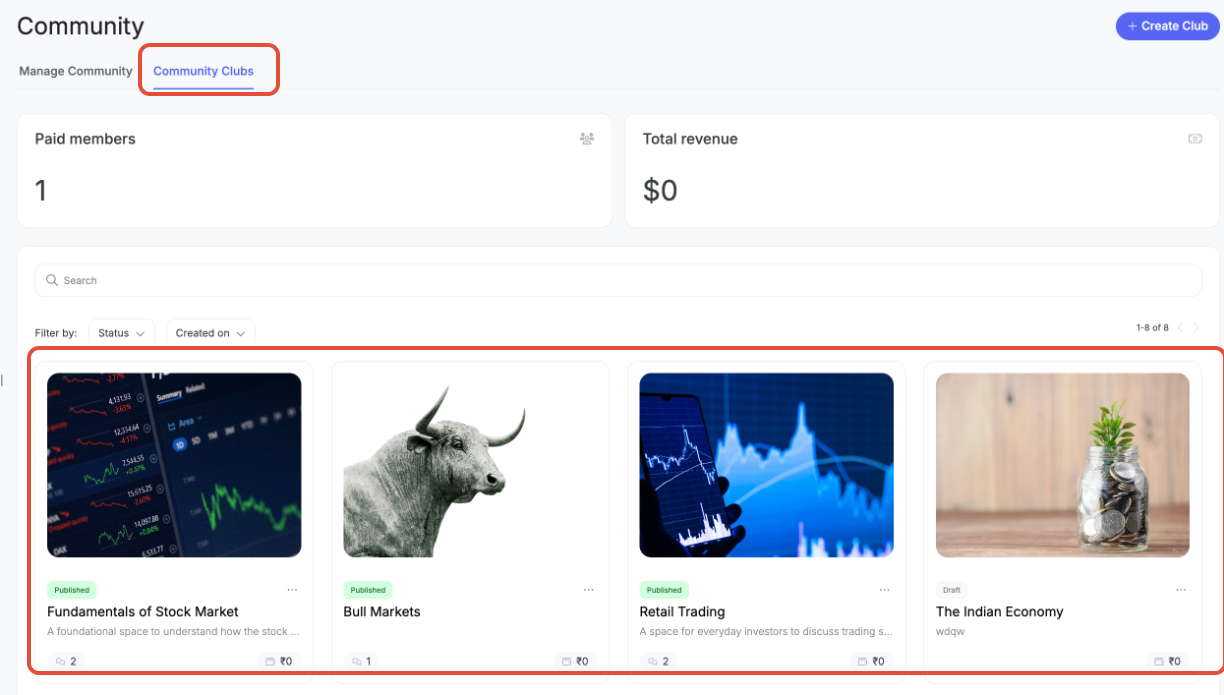
Landing page details — the same fields as creation (Club name, Description, cover image, FAQs). Changes here go live instantly.
Club details — manage your channels. Each channel appears as a row you can expand to edit:
Channel name* — required
Purpose — optional, describes what members will use the channel for
Admin-only posting — toggle on so only admins can message in the channel (members can still react to messages)
Use the trash icon to delete a channel, or + Add channel to create a new one
Customers — see Section 2.2 below (this doubles as your customer search view)
Pricing — manage pricing plans.
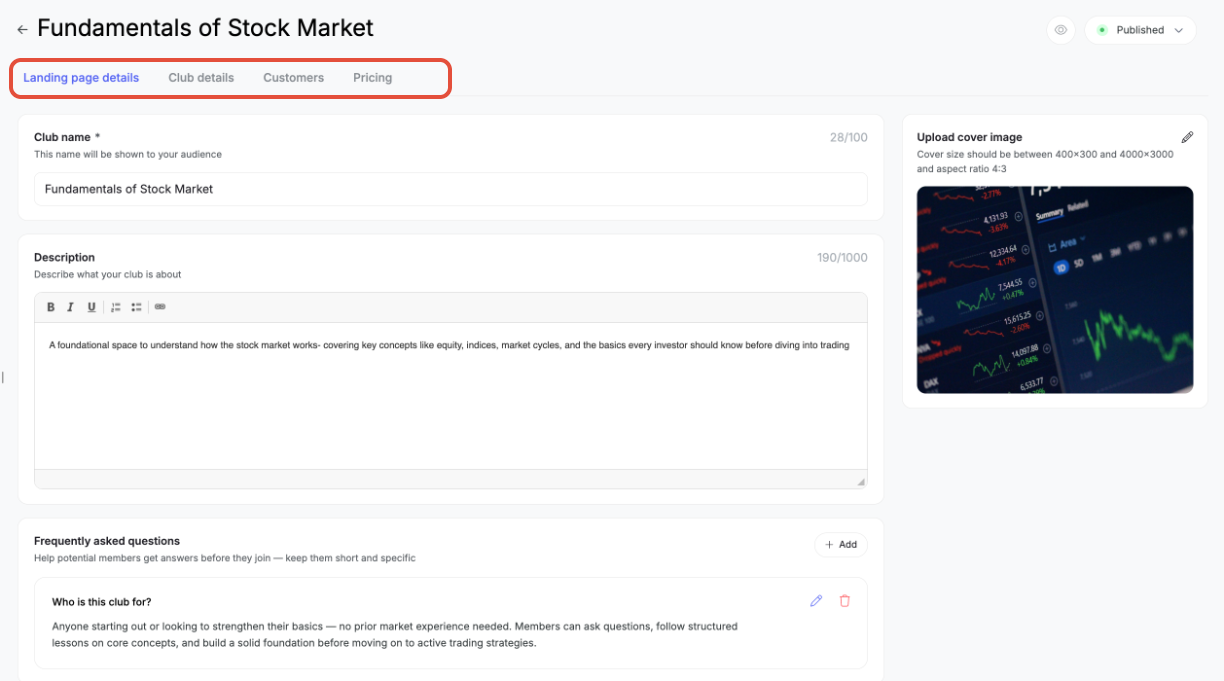
At the top of the detail view, you'll also find:
An eye icon to preview the club as your audience would see it
A status dropdown (defaults to "Published") where you can change the club's status:
Published — live, open to new members
Draft — not yet published
Pause — only renewals are allowed; no new subscriptions
Archived — no new subscriptions or renewals allowed
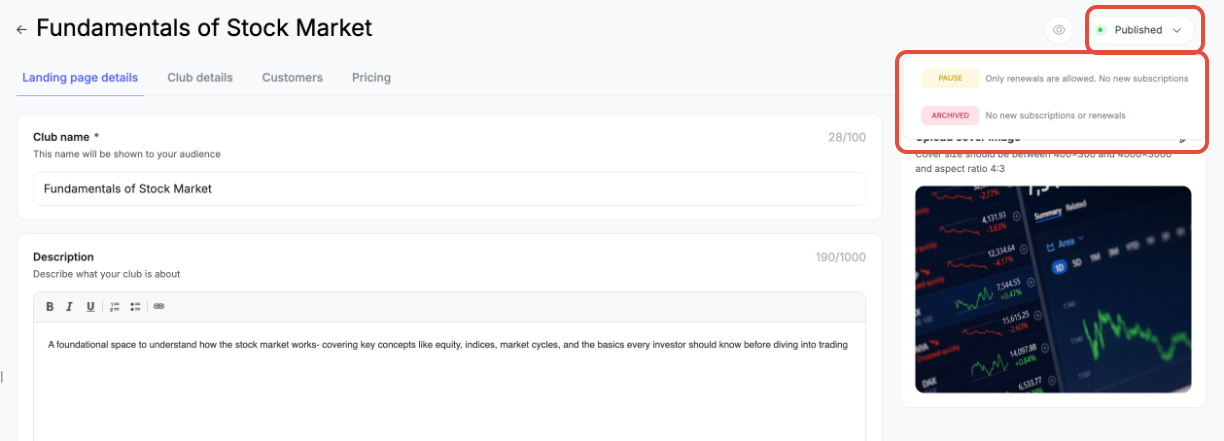
2.2 Searching Inside a Community Club
The Customers tab is where you find and manage everyone who has paid to join this specific club.
Use Search by email or phone number to look up a specific customer
Filter by: Status, Enrolled on, Renewed date, Expiry date, or Plan (useful when a club has multiple pricing plans)
The results table shows: Name, Email, Phone, Enrolled on, Renewed date, Status, Expiry
If no one has joined yet, you'll see an empty state: "No customers yet — Customers who enroll in this product will appear here."
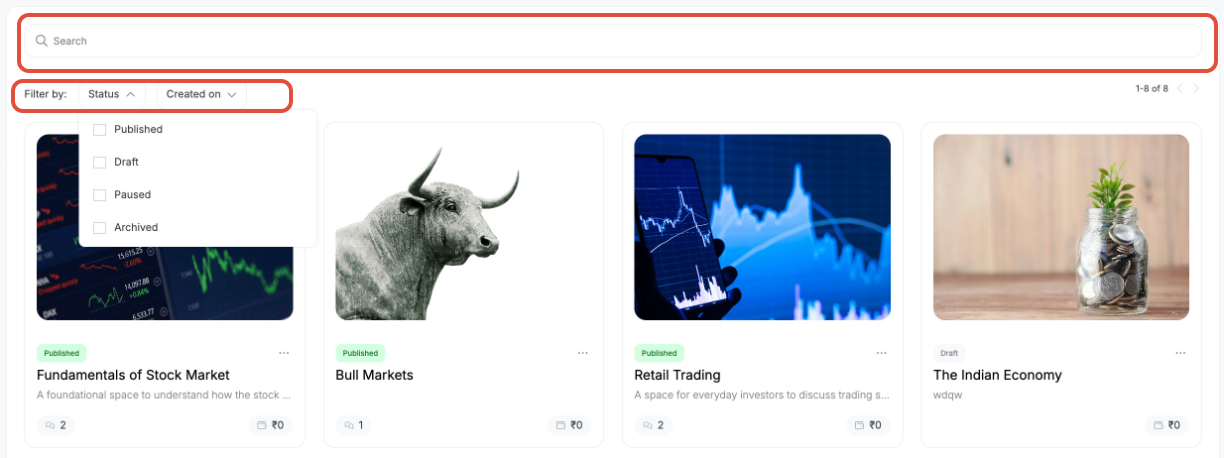
3. How to Add Multiple Pricing Plans to a Club
A single Community Club isn't limited to one price point- you can add several plans (for example, a free tier alongside a paid one, or multiple paid tiers at different price points).
Open the club and go to the Pricing tab.
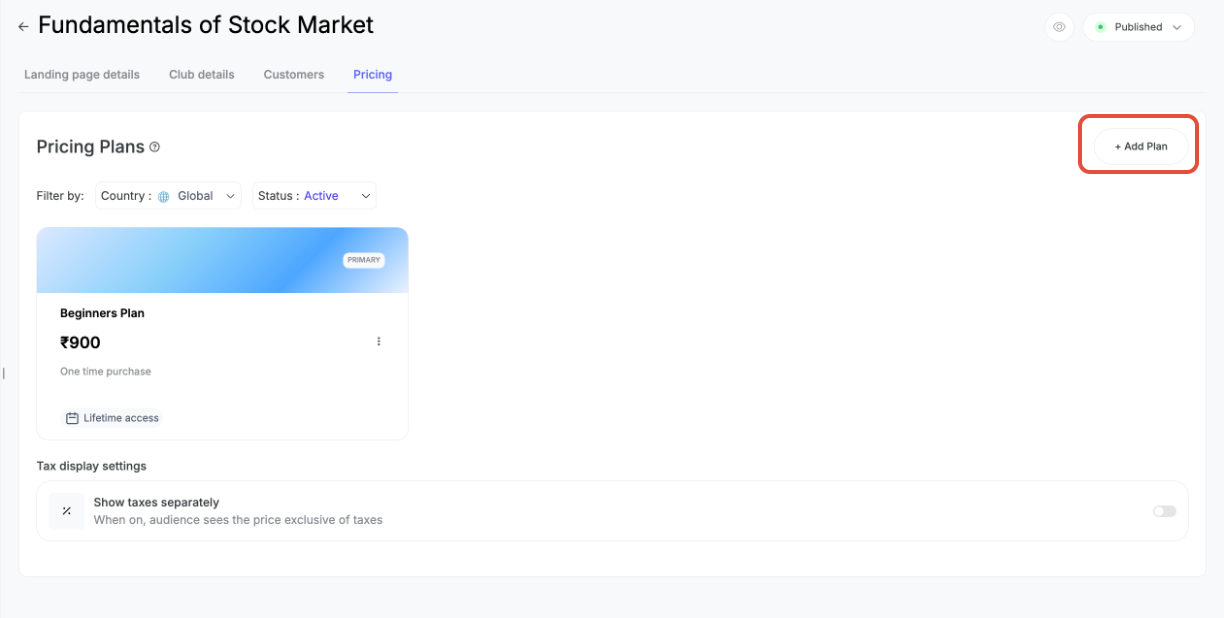
You'll see all existing plans as cards, each showing the plan name, price, description, and access duration (e.g., "Lifetime access"). One plan is marked PRIMARY — this is the default plan shown to new members.
Click + Add Plan to create a new one.
This opens the same Pricing Plan modal used during club creation — set the plan name, pricing type (Free / One-time payment / Subscription), price, transaction. Add fee handling, and advanced settings, with a live Preview on the right.
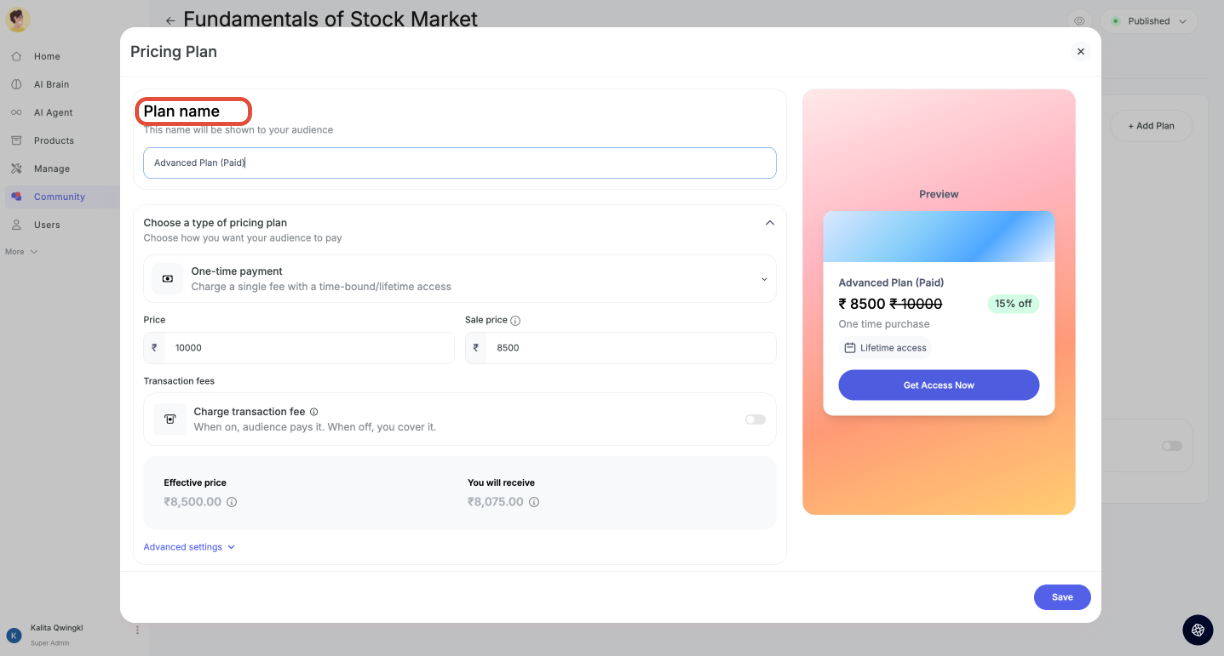
Click Save to add the plan.
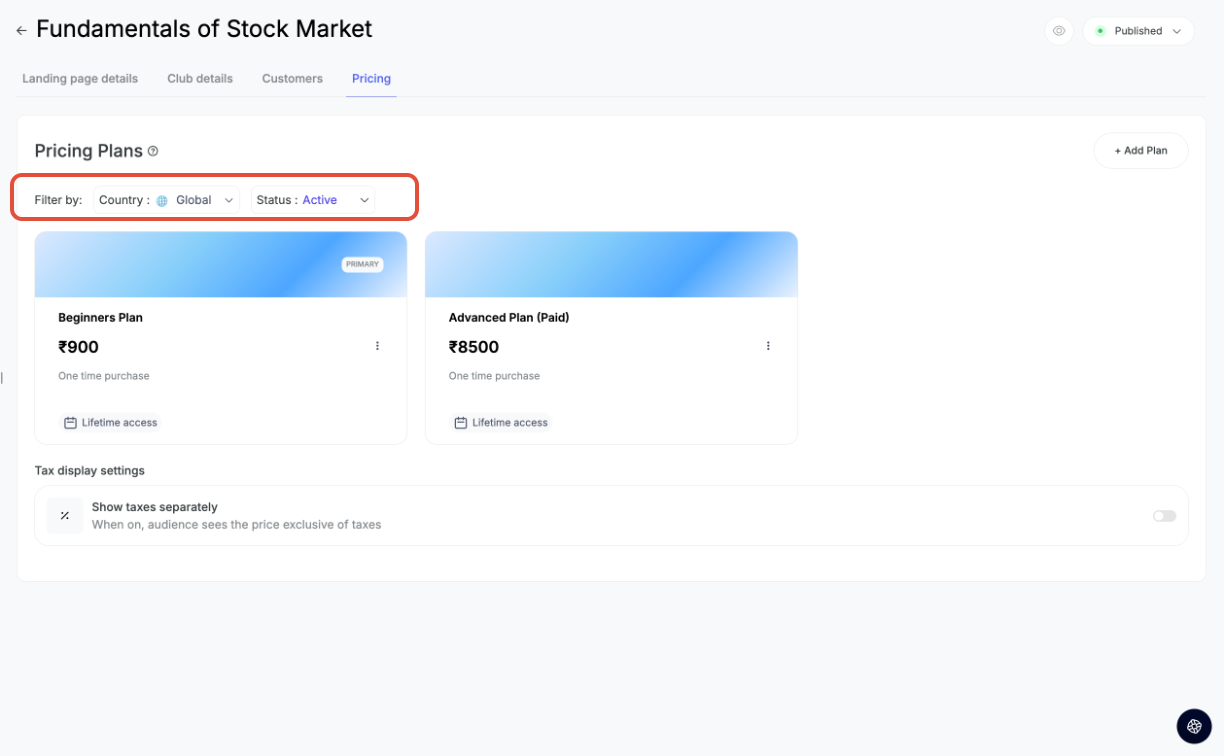
Once the plan is added, you can go back and see the plans listed as cards, under the pricing tab of the Club.
Filter by Country — plans can be scoped globally or by specific country (useful if you want different pricing for different regions)
Filter by Status — each plan has its own status, independent of the club's overall status:
Active — the plan is available for purchase
Archived — the plan is no longer available to new members, but this doesn't affect the club itself or any other plans inside it
 ⚠️ Note the distinction: Club-level status (Published/Draft/Pause/Archived) controls the entire club. Plan-level status (Active/Archived) controls only that specific pricing plan. A club can stay Published while individual plans inside it are archived or paused.
For details on managing channels, threads, search, and general community features, refer to the companion "Managing Your Community" article.
Was this article helpful?
That’s Great!
Thank you for your feedback
Sorry! We couldn't be helpful
Thank you for your feedback
Feedback sent
We appreciate your effort and will try to fix the article